Stitch photos side by side, stack them, grid them, or collage freely — and download one full-resolution image.
Each row starts with the photos that went in and ends with the single file that came out. No mock-up, no retouching: the numbers under every plate are the export resolution and the spacing it used.
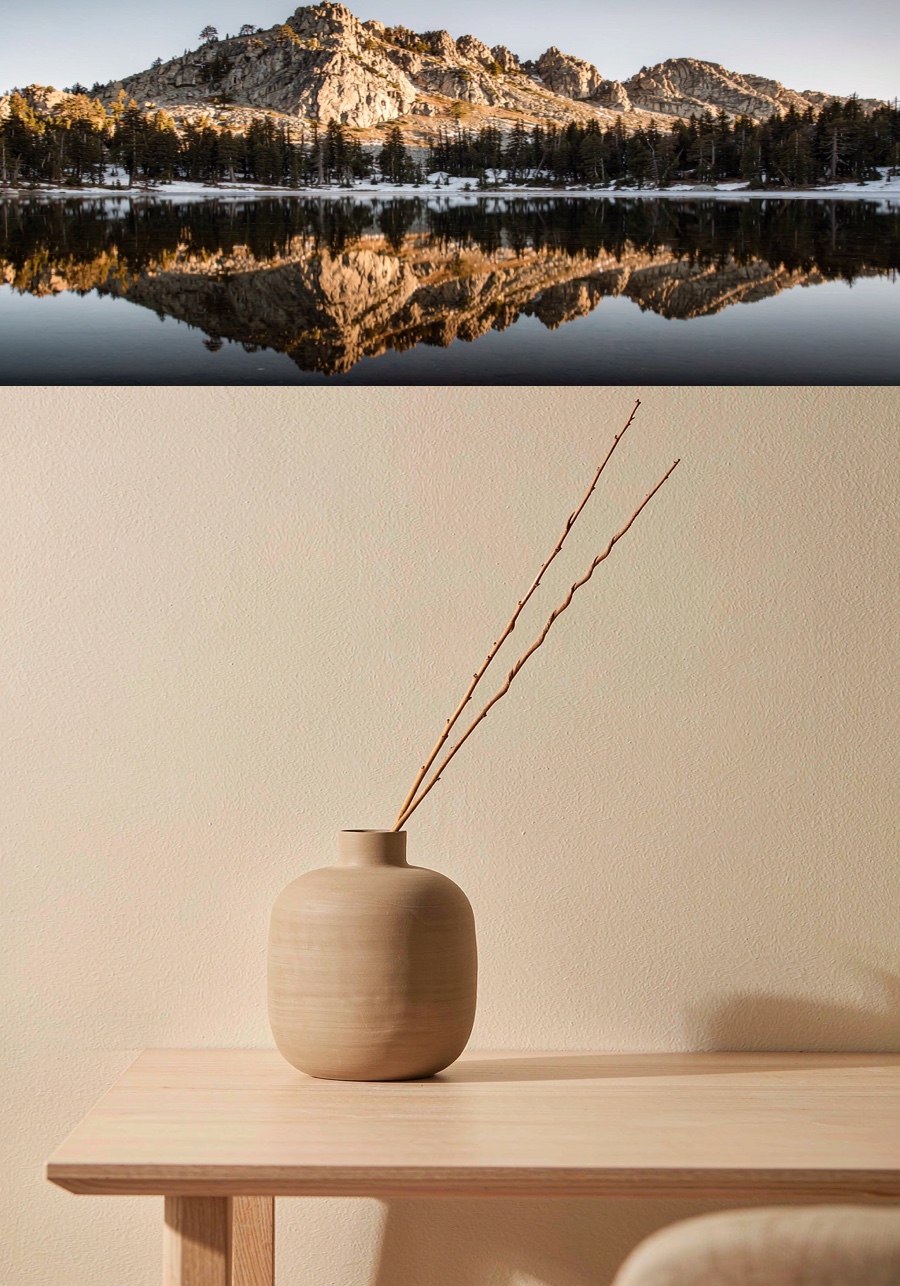
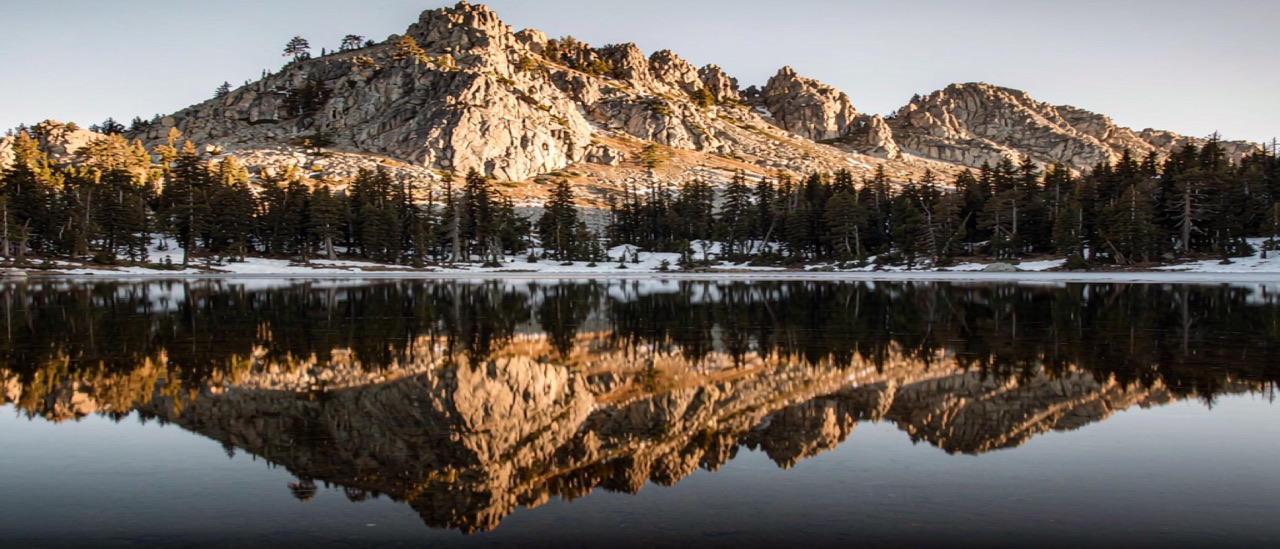
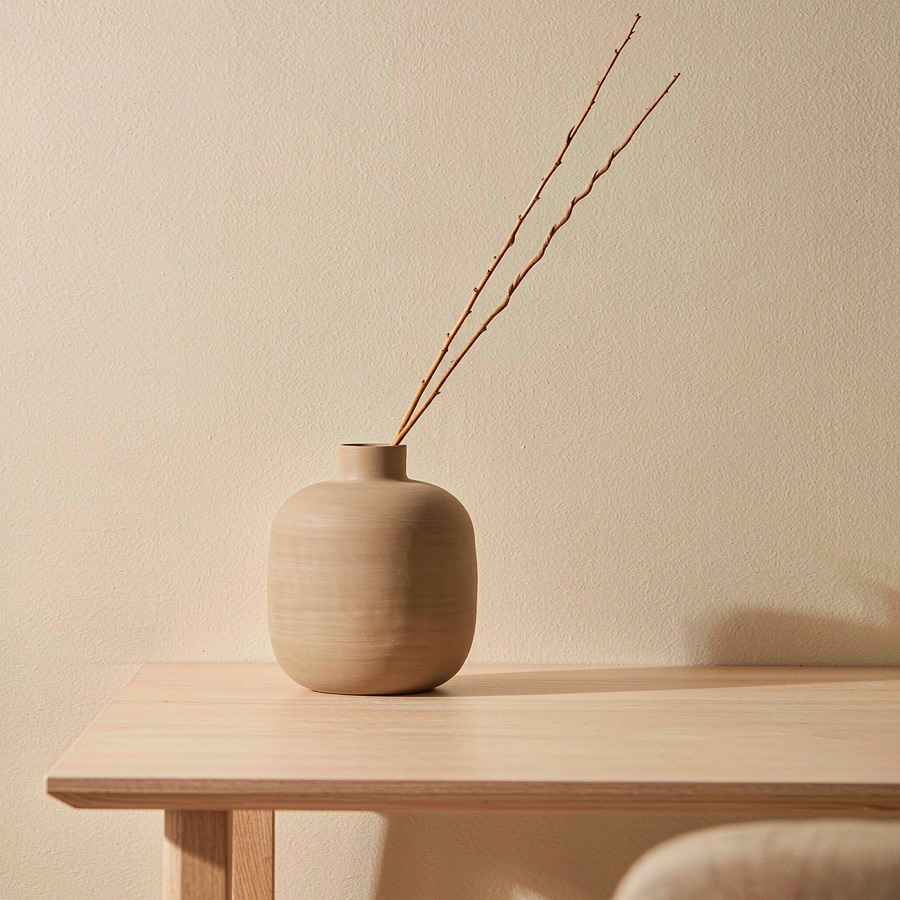
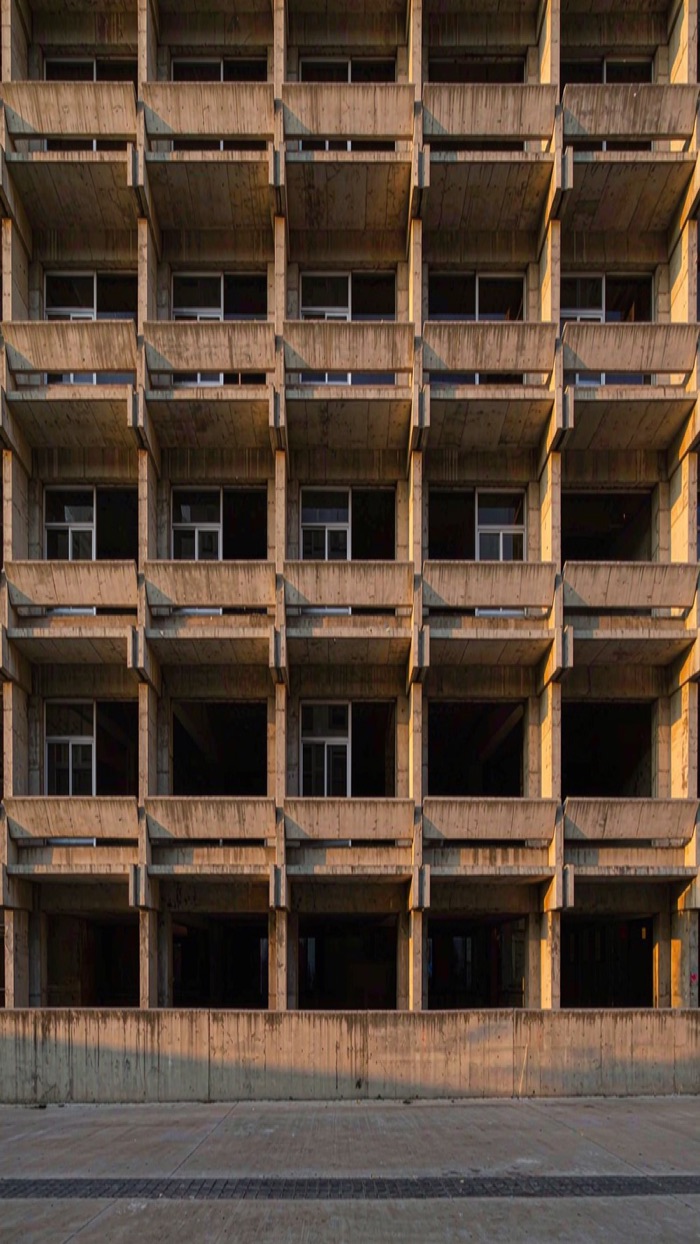
A panorama laid over a square product shot. Both are scaled to one width, the seam sits at zero spacing, and the result is a single tall image you can post or print without a visible join.

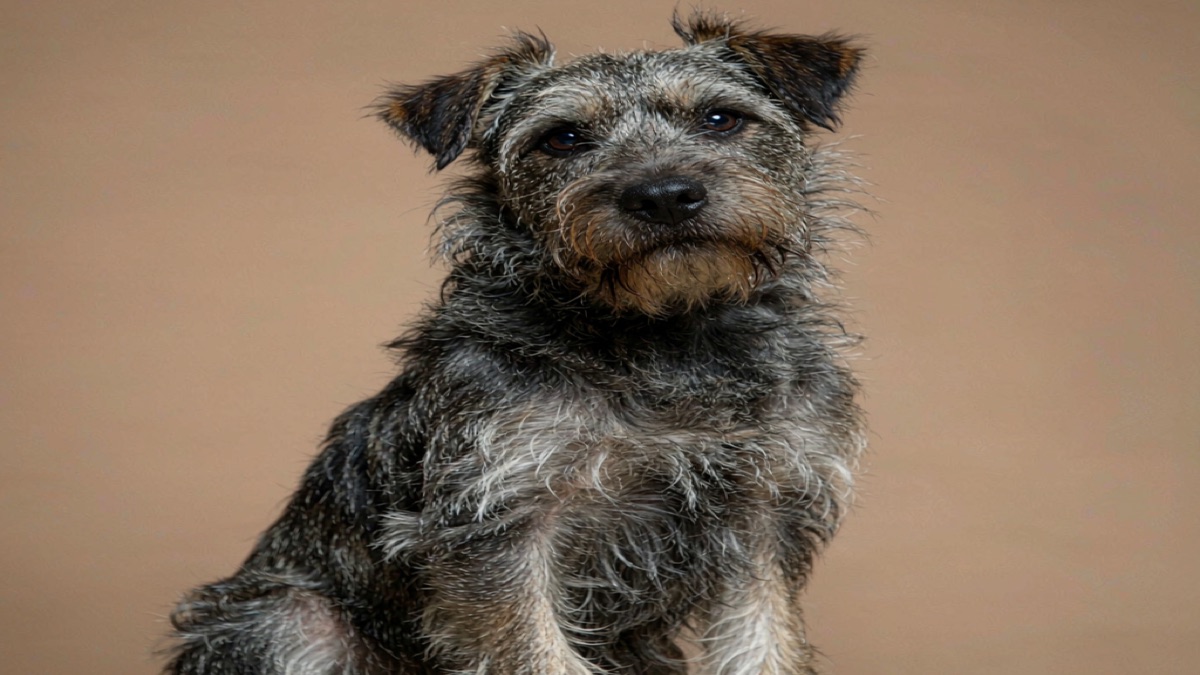
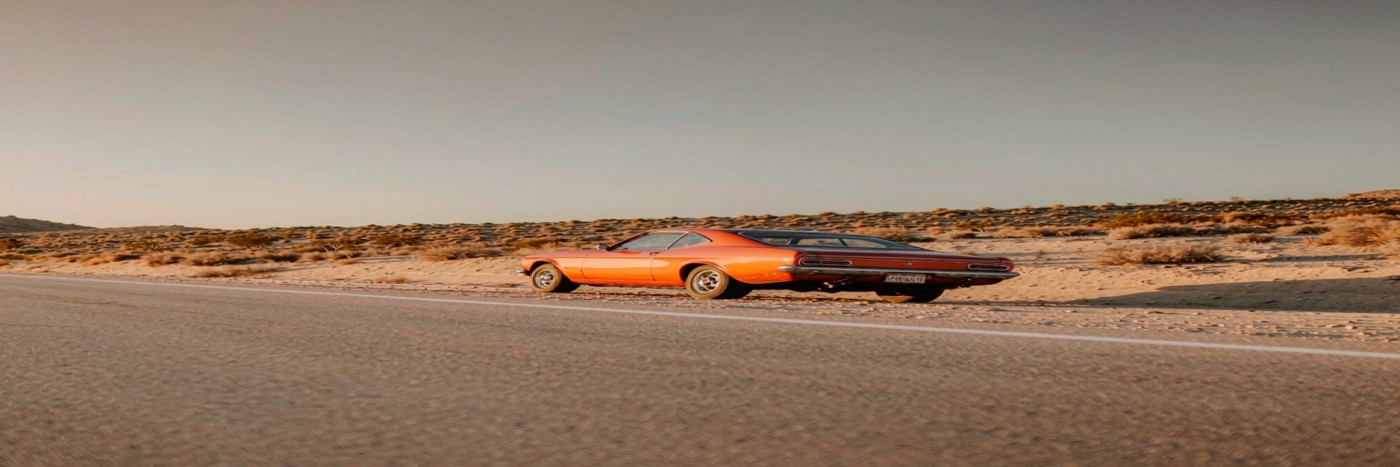
A dog, a car and a lake lined up on a common height. Each panel keeps its own width, so the strip reads as a journey rather than three equal boxes, and the seams fall where the photos end.
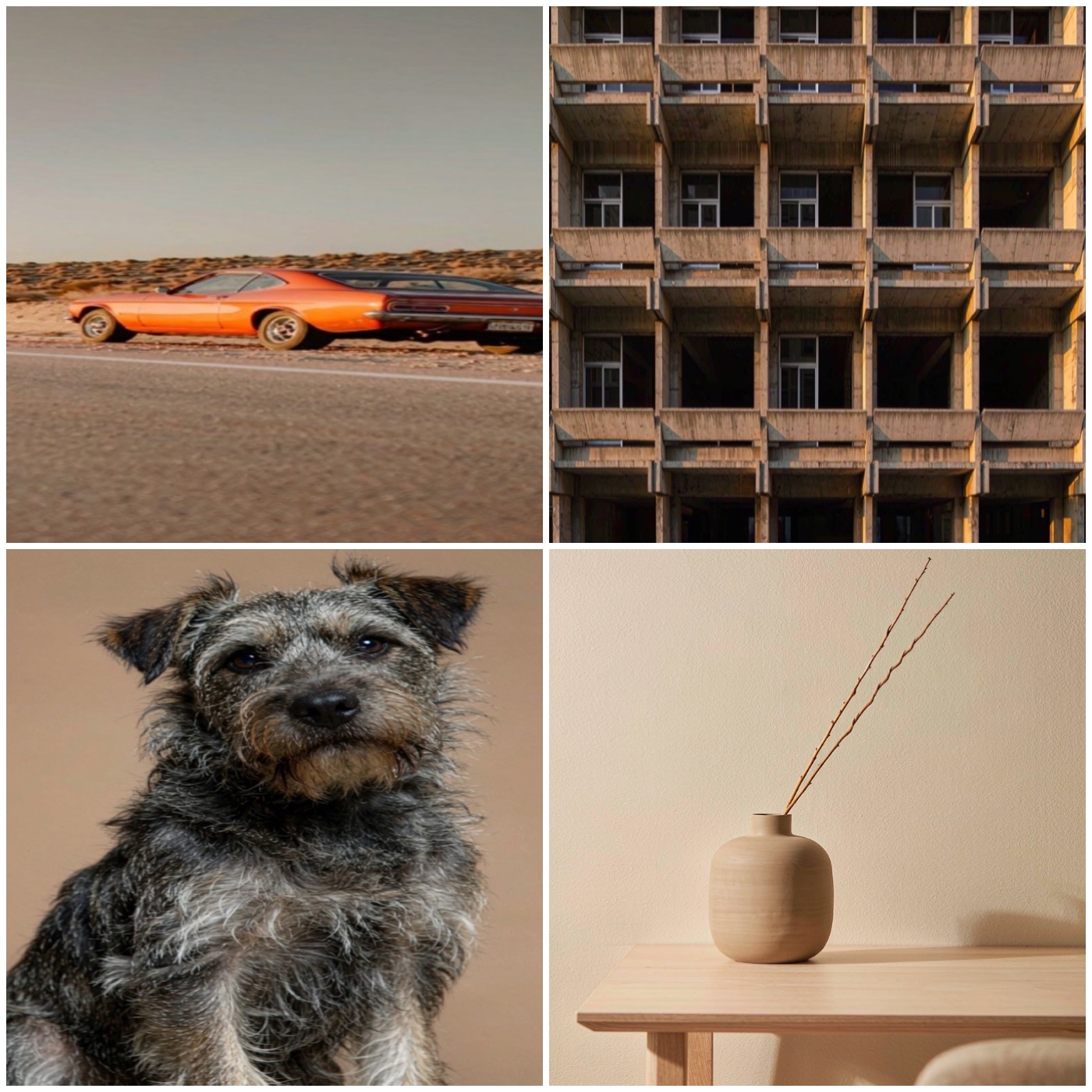
A two-by-two grid with eight pixels of paper between the tiles. Every cell is cropped to the same square, which is the setting to use when the images are different shapes but the layout has to stay tidy.
Every plate here was exported by the tool on this page, then re-encoded for the web. The photos are demo shots, not user uploads.
Merging photos — putting two or more into one image — is an old need with an awkward toolbox. Desktop editors want a project file, phone apps want an account, and most online mergers want your upload. The grid method most people fall back on — eyeballing sizes in a document — leaves jagged edges and mismatched scales that show the moment the composite is shared or printed. Yet the need itself is simple — one picture, several sources — and when the tool gets out of the way, you can have the finished image in seconds.
A dedicated merge image tool replaces that with plain arithmetic. Horizontal mode gives every photo a shared height and lays the widths end to end; vertical mode gives every photo a shared width and stacks the heights; grid mode cuts the canvas into even cells and crops each photo to fill its cell. No rounding drift, no crooked seams, no calculator. Because the geometry is computed, the same layout rebuilt next week comes out pixel-identical.
Everything runs locally in your browser. The photos are decoded on your device, the composite is drawn onto a canvas; the export is assembled in memory. There is no upload step and no server-side processing — the practical limit is your device's memory, and very large merges may simply need more processing time. Nothing is written to disk, and closing the tab clears every trace of your work.
Drag several PNG, JPG or WebP files onto the workspace, or browse. Files are read locally in your browser — there is no upload wait.
Switch between horizontal, vertical, grid and collage whenever you like. Drag thumbnails to set the order — the preview redraws as you move each control.
Adjust spacing, border thickness and corner radius, plus the canvas background, or leave the background transparent for PNG export.
Download it as a lossless PNG or a 90%-quality JPG at full resolution, or copy it straight to your clipboard.
Every photo is scaled to the shortest photo's height, so nothing is enlarged — with widths running end to end. Made for comparisons and panorama strips. Aspect ratios are preserved, so faces and buildings never come out squashed.
Every photo is scaled to a shared width and stacked into one tall ribbon with even seams. Made for screenshots, recipes and long reads. Reading order is preserved, so numbered steps and chat logs stay in sequence.
A column slider (2 to 6) sets the grid; every cell shares one aspect ratio and photos are cropped to fill, so rows and columns always line up in the finished composite. Pick the column count; the rows follow — a 2×2 family grid and a 3×3 product wall share one slider.
Drag photos anywhere on the canvas, resize from a corner, rotate each one, and stack layers front to back over a background color you pick. Scrapbook pages, sticker sheets and travel spreads — layouts that should feel hand-arranged rather than computed.
Put the shot and the retouch side by side with matched heights and a hairline gap. Progress posts, redesign reviews and before/after listings read cleanly when the seam is straight.
Stitch landscape frames into one wide strip, or stack screenshots and steps into a single tall composite that scrolls naturally in chats, recipes and webtoon-style posts.
E-commerce thumbnails, event recaps and Instagram-style grids want uniform cells. Grid mode crops each photo to the same cell so edges line up without manual cropping.
Free collage mode layers photos at any size and angle over a colored canvas — vision boards, editorial layouts and birthday sheets that need a hand-arranged feel.
Horizontal and vertical modes scale photos down to one shared edge, never up — the smallest photo sets that edge, so sharp sources stay sharp. The composite can only look as good as its inputs.
The merge image tool renders at full physical resolution, and big merges of big photos can exceed what a browser canvas can allocate. The readout under the preview shows the output size before you export.
The gap is worth deciding up front: two to four pixels of spacing read as a comparison; sixteen to twenty-four with rounded corners reads as an editorial collage. Transparent backgrounds export only from PNG.
PNG keeps text, logos and transparency crisp; JPG at 90% quality keeps photo merges light. A transparent canvas turns white under JPG. When in doubt, export PNG first and compress later if you need a smaller file.
No. Files are read with the browser's FileReader API, the composite is drawn on a canvas; the export is assembled in memory — nothing is uploaded, and nothing survives closing the tab. Like most sites, the page still loads analytics and advertising scripts, but they do not receive your photos — the merge image tool never sees them.
There is no fixed count. The practical limit is your device's memory: the output renders at full physical resolution, and a wall of very large photos can exceed what a browser canvas can allocate. The readout under the preview shows the output size before you export.
Yes. Check Transparent background and export as PNG to keep the composite transparent — useful for stickers and logos. JPG has no alpha channel, so a transparent canvas is filled with white under JPG.
Drag a thumbnail in the Photos strip to a new spot, or focus it and use the arrow keys. In collage mode you can also drag photos directly on the canvas and restack layers from the selected-layer controls.
No. Horizontal and vertical modes scale photos down to a shared edge and never enlarge them; grid mode crops to fill equal cells. PNG export is lossless at the full output size, and JPG is saved at 90% quality. Detail still depends on your sources — matching sharpness keeps the seams invisible.
Yes. Exports carry no watermark and the tool claims no rights over your pictures — the copyright of the source photos stays with you, so only work with images you own or may use.
Drop in your photos, pick a layout and download. No account, no watermark, no upload.

 1
 2
 1
 2
 1