Six ways to cut a picture apart: equal strips, a rows-by-columns grid, a fixed aspect ratio, an exact pixel window, a square or circle, or a straight resize. Every piece is exported at full source resolution, and your file never leaves the browser.
Three cuts taken from this tool, with the rows and columns read straight off the grid. The plate carries the 1px cut lines and their numbers; the small tiles beside it are the files the export would actually hand back, at the source resolution.

A 900 × 900 product shot cut three across and three down. Upload the nine files left to right, top to bottom, and the profile grid reassembles into one picture.






The exported pieces, one file each
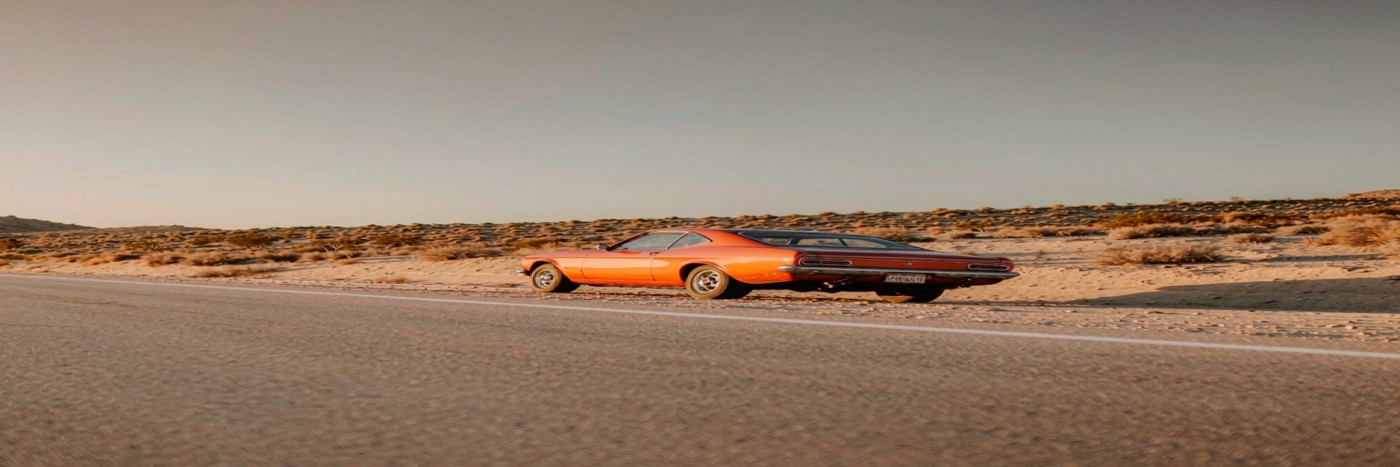
A 1400 × 467 banner halved on the vertical. Two panels that line up when someone swipes, which is all a two-frame carousel needs.
The exported pieces, one file each
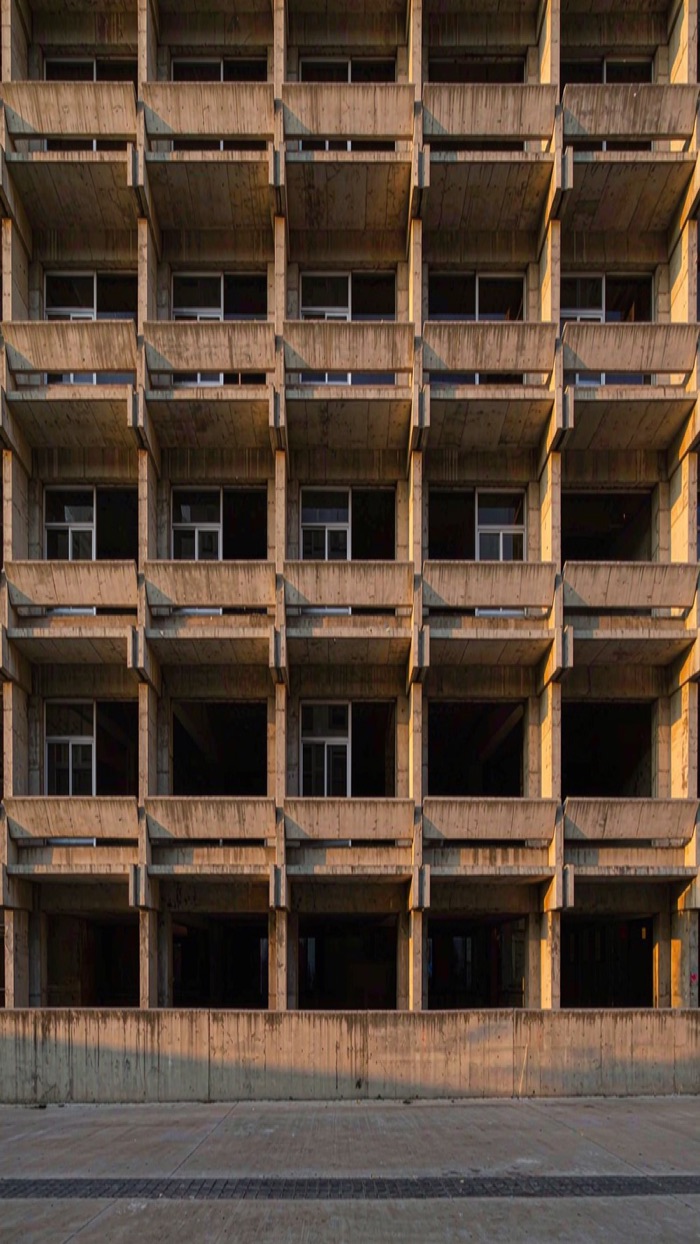
A 700 × 1244 story frame cut into four. Each quarter prints on its own sheet at 350 × 622, the short path from one tall picture to a wall of paper.
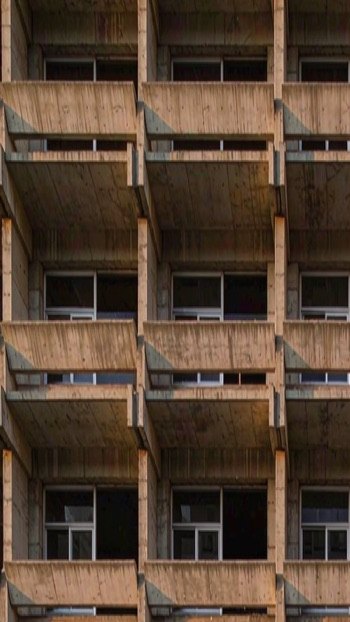
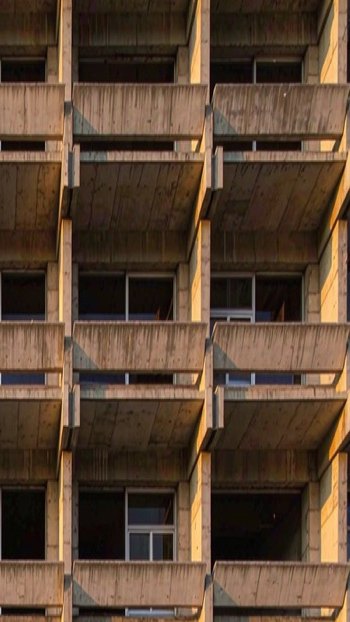
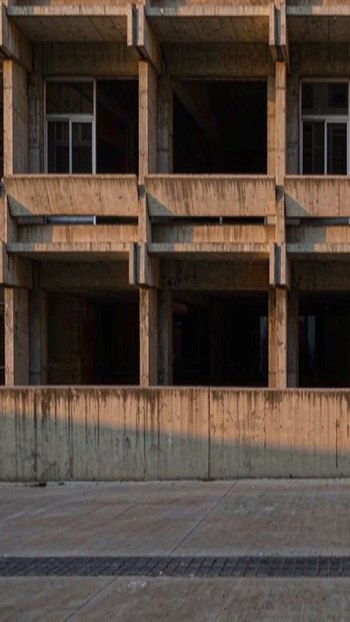
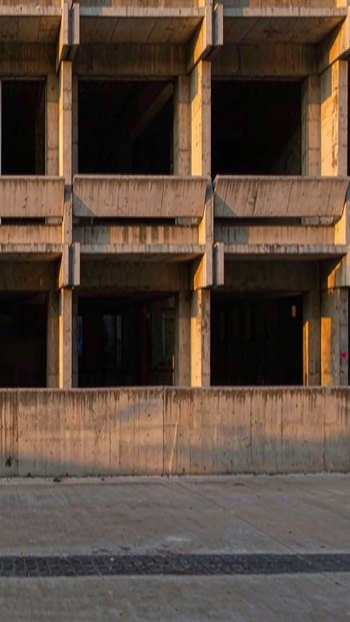
The exported pieces, one file each
Demo photographs, cut with the same arithmetic the tool uses: the rows and columns absorb any remainder, so no pixel is lost. They are not user uploads, and the files you export are your own.
Most places that accept an image want it in a particular shape. A profile picture has to be square. A story has to be tall. A banner has to be wide and short. A carousel post has to be cut into equal panels that line up when someone swipes. None of that is hard to do once, but it is tedious to do fifty times, and image editors make you repeat the same four steps with a different crop box each time. A dedicated split image tool replaces those four steps with one slider.
The other common reason to split image files is printing. A home printer cannot produce a sheet larger than the paper you feed it, so anything bigger than A4 has to be cut into pages and reassembled. That is what a grid split does: it divides the picture into rows and columns of tiles that each fit on a normal sheet, with no gap and no duplicated pixels between them.
Both jobs come down to the same operation — deciding where the cut lines go and writing out each region as its own file. Doing that by hand is where mistakes creep in: a crop that is one pixel short leaves a hairline seam, a grid that drops the remainder loses the right and bottom edges, and a resize that ignores the aspect ratio stretches faces. This tool keeps the arithmetic consistent between what the preview shows and what you download.
Everything runs locally, so a split image never leaves the machine. The image is decoded by the browser, the pieces are drawn onto canvases, and the ZIP or PDF is assembled in memory. There is no upload step and no server-side processing, which also means large files are limited by your device's memory rather than by an arbitrary quota.
Drag a file onto the upload area or click to browse. PNG, JPEG, WebP, BMP and GIF all work, and the image is read locally, so there is no upload wait.
Pick how you want to split image files: equal strips for carousels, a grid for printing, a fixed ratio for social crops, exact pixels when a platform dictates a size, a shape for avatars, and resize for a plain smaller copy.
The cut lines, tile numbers and output dimensions update as you move the sliders. Drag the frame in the crop modes, or scroll and pinch to zoom, until the subject sits where you want it.
Once you split image data, multi-piece modes produce a ZIP with one PNG per tile, named by row and column. They can also produce a PDF with one page per tile, which is the better option if the destination is a printer.
Choose two to fifty pieces and a direction to split image strips evenly. Vertical cuts give you side-by-side columns; horizontal cuts give you stacked rows. The last piece absorbs the remainder, so an odd pixel count does not leave a one-pixel sliver or a gap.
Pick 1:1, 4:3, 16:9, 3:4 or type your own width and height. The frame keeps that ratio while you drag it around the image, and the zoom slider makes it smaller so you can crop in on a face without changing the output shape.
Type an exact width and height and drag the window over the region you want. This is the mode for when a platform specifies dimensions — 1200×630 for a link preview, 1080×1080 for a square post — and you need the pixels to match exactly.
Scale the whole image to a target size, optionally keeping the aspect ratio locked. Choose PNG for sharp edges and transparency, JPEG for photographs, or WebP for the smallest file. Enlarging beyond the source resolution softens the result; it does not add detail.
Square or circle, sized as a percentage of the image's short edge. Circle output has a transparent background, so it drops straight into an avatar slot. The zoom control crops in before the shape is applied.
Independent row and column counts from one to a hundred. This is the mode to split image pages for printing. Tiles are numbered row-col from the top-left, and the remainder is merged into the last row and column so the edges of the picture are never clipped. Large grids are slower because every tile is encoded separately.
Split image panels out of one wide picture — three squares that make a swipe-through post read as a single continuous frame. A 3×3 grid does the same for a profile page, where nine posts together form one large picture. Export the pieces in order and upload them left to right, top to bottom.
Fixed shape mode produces a square or a circle with a transparent background, which is what most profile fields and app icons expect, and it is the quickest way to split image assets into avatar slots. Fixed ratio handles the 16:9 and 4:3 versions of the same artwork without you recropping by eye.
A rows-by-columns grid turns one image into tiles you can print at home and tape together into a poster. The PDF export writes one page per tile at an exact physical size, plus a specification sheet with a page-order map.
Resize mode writes a smaller copy at a chosen width and height in PNG, JPEG or WebP. That is handy for producing a low-bandwidth variant of a hero image or shrinking a screenshot before putting it in a bug report.
Splitting does not resample anything, so each piece inherits the source resolution unchanged. A grid that divides a small image into nine parts leaves nine small images, and printing them large will look soft.
When the width does not divide evenly, some tools floor each tile and silently drop the remainder. Here the leftover pixels go into the last column or row, which keeps the total exact but makes one tile slightly wider.
The exported pieces are separate files with no link back to the source. If you later need a different crop, starting again from the original is faster than trying to stitch the pieces back together.
PNG keeps transparency and hard edges, which suits logos and avatars. JPEG is smaller for photographs but has no transparency. WebP is usually smallest of all, though a few older tools still refuse it.
No. A split image is never uploaded: the file is read with the browser's FileReader API, cut on a canvas and packed into a ZIP or PDF in memory. It never reaches a server, and nothing survives closing the tab. Like most sites, the page still loads analytics and advertising scripts, but they do not receive your image.
You can split image grids up to 100 rows by 100 columns, but the export is capped at 400 pieces per run because each one is encoded separately and very large counts will stall the tab. For anything bigger, split in batches. In practice most jobs need between two and twenty pieces.
Cutting does not resample: each piece contains exactly the pixels that were in that region of the source. The output can look softer only if you then print it at a size larger than its resolution supports, or if you resize it upward.
After you split image files, the ZIP contains one PNG per piece at native pixel size, which is what you want for social media, design tools or further editing. The PDF puts one piece on each page at a physical size derived from the resolution you pick, adds a row-col stamp for assembly, and starts with a specification sheet — that is the print path.
Because the image dimensions rarely divide evenly. Rather than discard the remainder, the last column and last row absorb it, so the total width and height stay exact and no pixels are lost. The difference is at most a few pixels per edge tile.
Any format your browser can decode — PNG, JPEG, WebP, BMP and GIF all work in current browsers. Animated GIFs are treated as a single still frame. Exports are PNG for the split pieces, or PNG, JPEG and WebP in resize mode.
Drop in a file, choose a mode and download the pieces. No account, no watermark, no upload.
